
Merging traces in the UI
The Perfetto UI can open several trace files at once and merge them onto a single shared timeline: traces from two devices, an app trace next to a system trace, or several recordings of the same scenario. The merge dialog analyzes each file, lets you configure how they line up and which machine each belongs to, and warns before opening if any events would not fit on the shared timeline.
For merging in scripts or CI, see Merging traces from the command line. For the underlying model, see Trace merging.
When to use it
Use "at the same time" merging for traces that were captured concurrently and belong on one timeline. Typical cases:
- Two devices recorded during the same scenario (phone and watch, two phones, host and DUT).
- An application trace (for example Chrome JSON) alongside a system trace from the same device.
- Several independently recorded traces from one fleet machine.
Comparing runs from different points in time (before/after a regression) is a different task; the dialog's "Trace Comparison" tab is not yet implemented and links to the tracking GitHub issue.
Opening multiple traces
Three equivalent entry points:
- Click Open multiple trace files in the sidebar (just below "Open trace file") and multi-select the files.
- Click Open trace file and multi-select in the picker.
- Drag several files from your file manager and drop them onto the UI.
Any of these opens the Open Multiple Traces dialog:
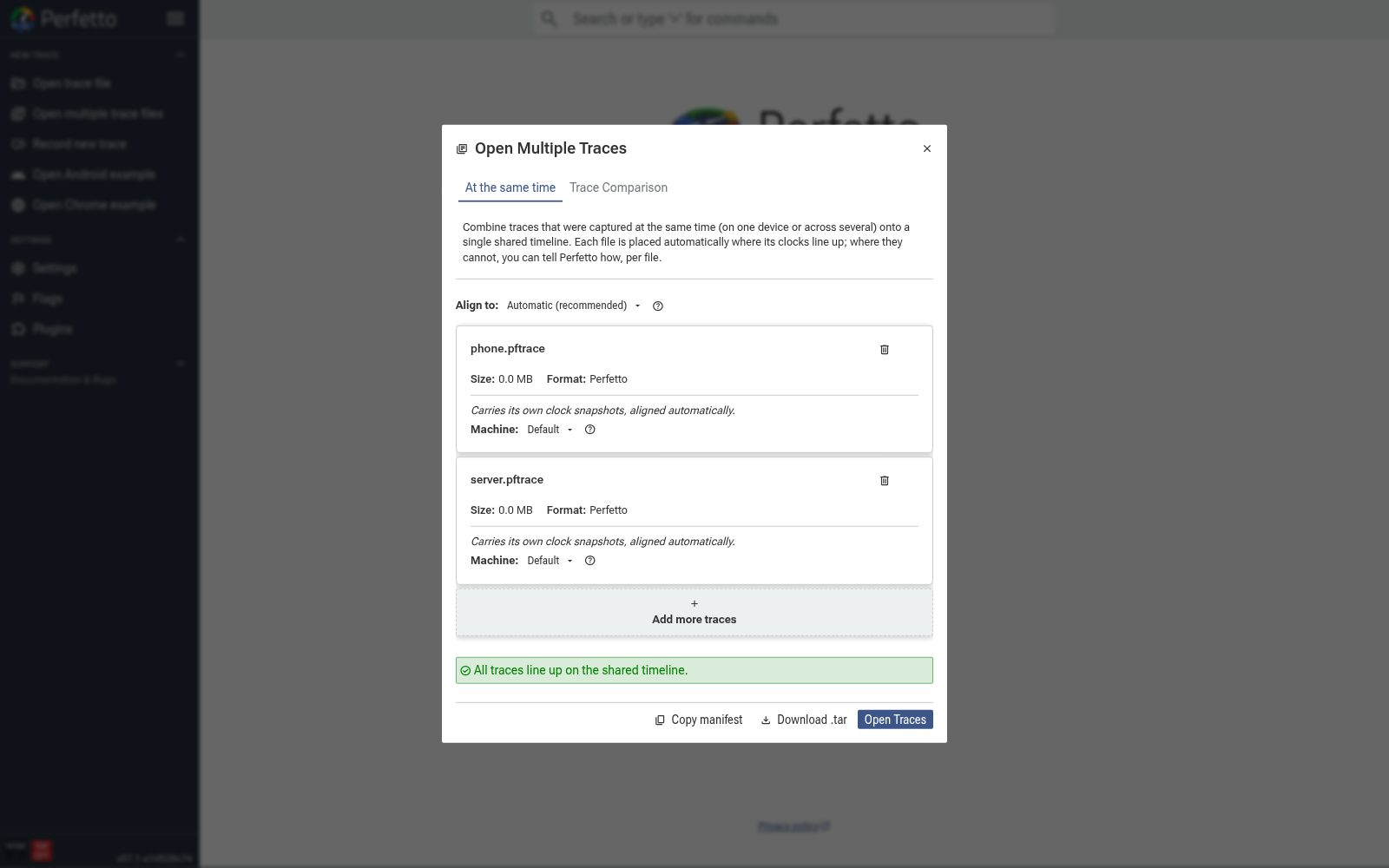
Each file is analyzed in the background (its format, clocks and machines are detected using a throwaway in-browser Trace Processor instance) and gets a card showing its size and format. Use Add more traces to grow the set, or the trash icon to remove a file.
Configuring the merge
The dialog only shows controls where there is a real choice to make; a set of traces that align on their own just shows the green status and an Open Traces button.
Align to: the shared timeline
The Align to: row picks the reference everything else lines up against:
- For traces carrying real clocks, it is a clock choice: Automatic
(recommended) lets Perfetto pick; choosing a specific clock (for example
REALTIME) projects every trace onto that clock. - For sets of clockless traces (for example several JSON files), it is a baseline trace: the chosen file keeps its own timestamps ("Baseline. Others align to this.") and the rest are positioned relative to it.
Per-file alignment
Traces that carry their own clock snapshots are placed automatically and say so on their card. For the rest, the Align: dropdown offers:
- automatically: line the trace up using its clocks.
- by a fixed offset: enter an offset in nanoseconds relative to the baseline trace. A positive value moves the trace later.
Machines
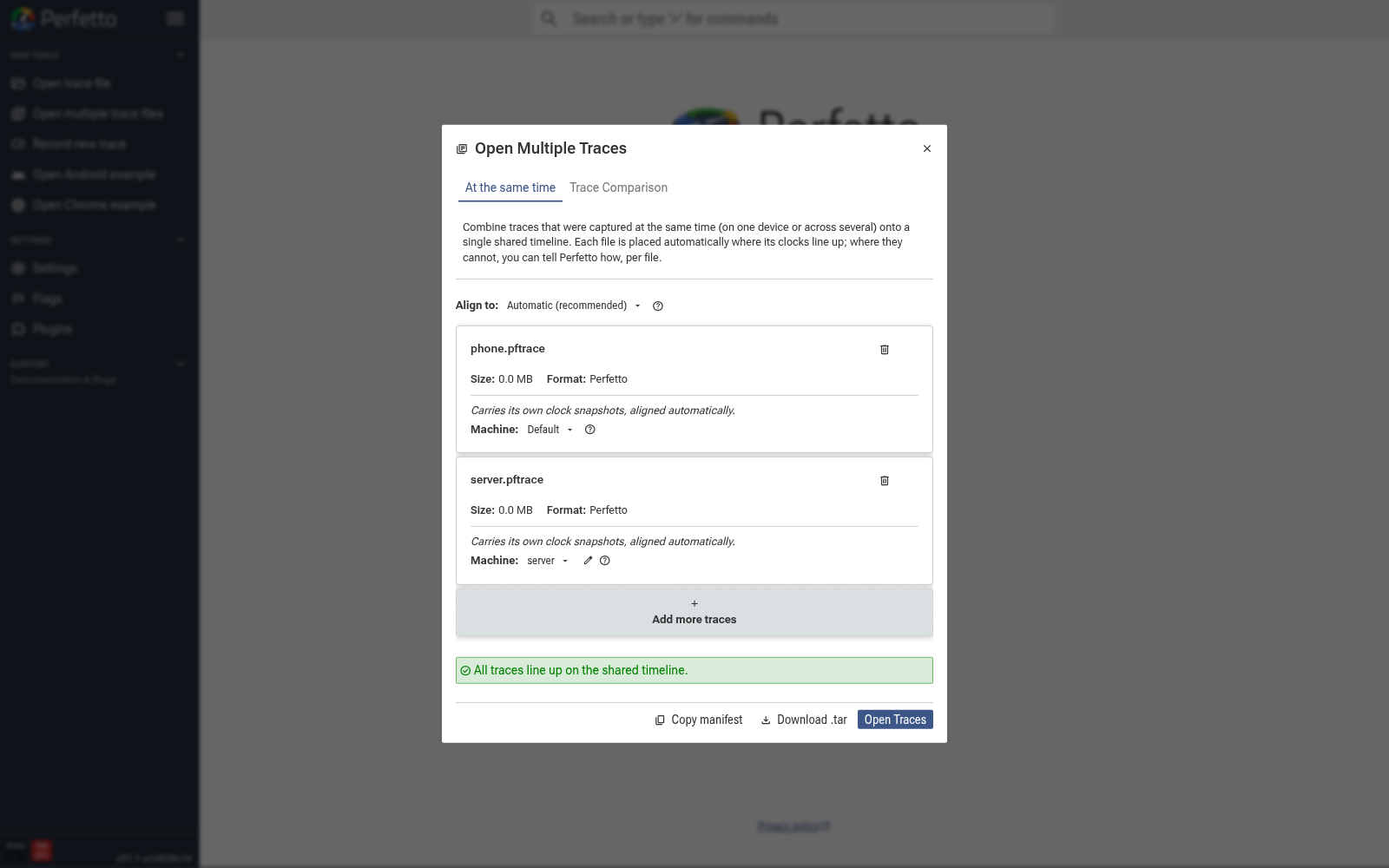
The Machine: dropdown attributes a file to a device. Keep Default to merge the trace onto the shared timeline alongside the host data, or use + Add machine... to create a named machine (for example "server") so the merged trace keeps that device's CPUs, processes and threads grouped separately. Pick the same machine for several files to put them all on that device.
A file that is itself a multi-machine trace (recorded via traced_relay) instead shows a Machines (N): table for naming each embedded machine id; the names take effect once all ids are named.
The status panel
While you configure, the dialog re-runs a dry-run merge (in the browser, on a debounce) and reports the verdict:
- Green: "All traces line up on the shared timeline."
- Warning: "N events would be dropped: they cannot be placed on the shared timeline, either because their trace shares no clock with it or because an offset moves them before its start. Adjust the alignment, or check the manifest."
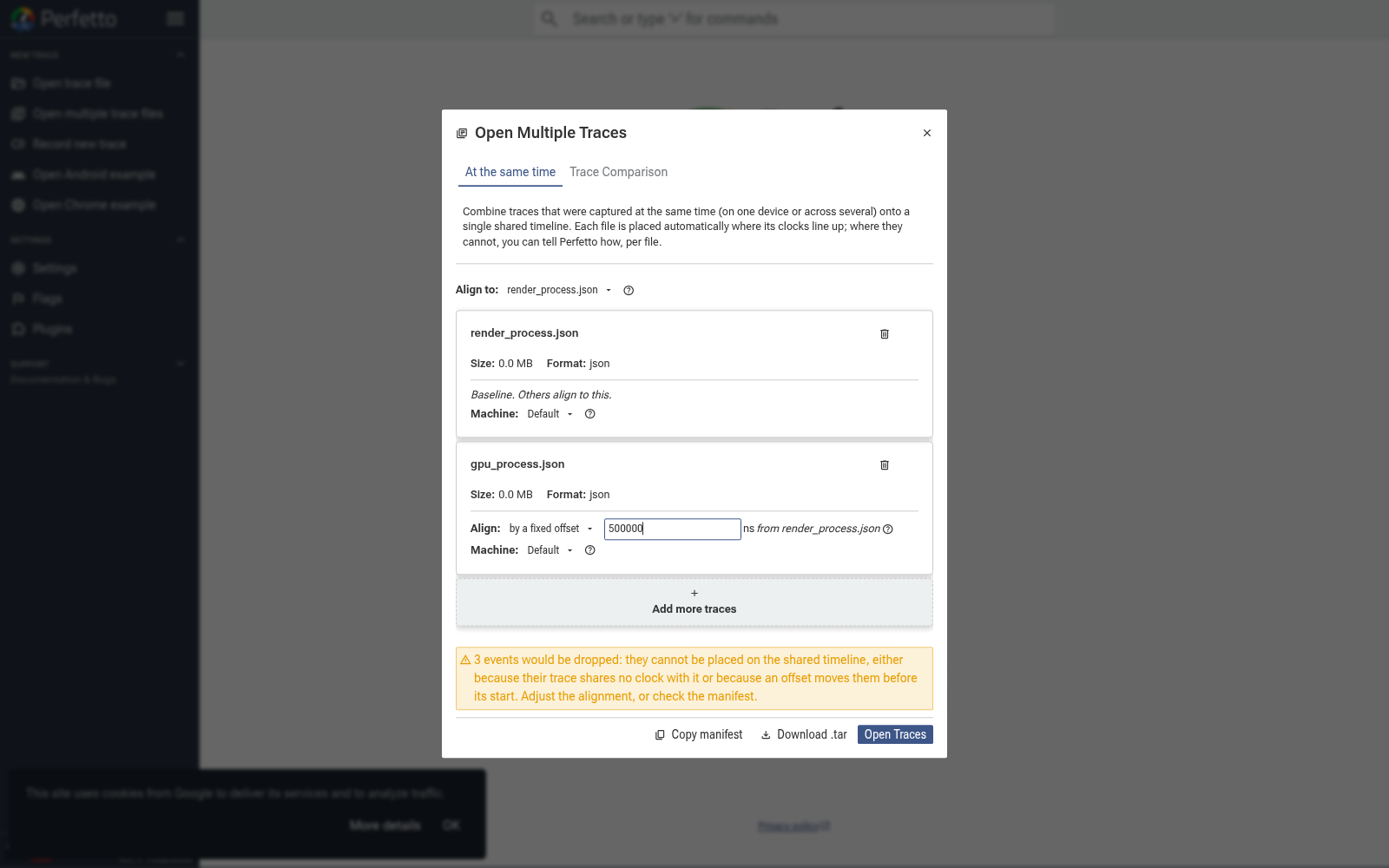
Blocking errors (duplicate file names, files that failed to analyze, a non-integer offset) disable the Open Traces button until fixed. Two files with the same name cannot be merged; rename one on disk first.
Opening and reading the result
Open Traces loads the merged trace. Tracks from a named machine carry
the machine name as a suffix, for example quote_service 4321 (server);
tracks from the default machine are unsuffixed. Here a phone app's
RPC: GetQuote slice lines up with the backend's HandleGetQuote work,
recorded on a different machine, on one timeline:
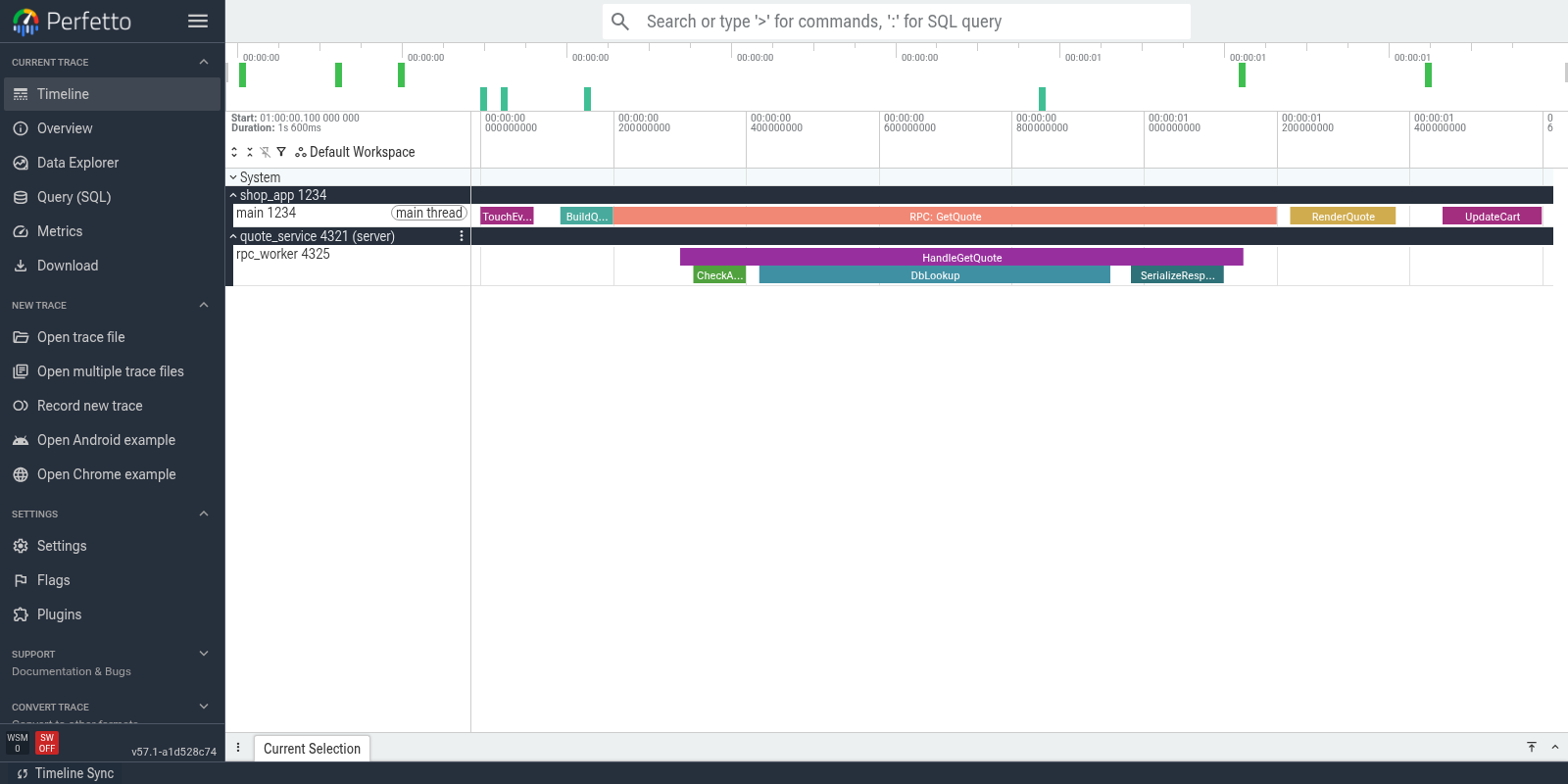
The timeline spans the union of all traces' recording windows, so two traces recorded minutes apart legitimately produce a long timeline with activity clustered at each end.
The Trace Info page (info icon in the sidebar) breaks stats, import errors and data losses down per input trace and machine.
Reusing a merge outside the UI
The dialog is built for one-off, interactive merges. If you are building a
tool or system that generates several traces per run (a benchmarking
framework tracing a client and a server, a multi-device test harness), you
probably do not want your users to reconfigure this dialog for every
capture. Instead have the tool bundle its traces and a
trace manifest into one archive:
that archive opens directly, in the UI or in trace_processor, with the
merge pre-configured.
The dialog's footer helps bootstrap exactly that:
- Copy manifest copies the current merge configuration as manifest JSON. Treat it as a template: file names, offsets and machine names usually differ per capture, so your tool will typically generate the manifest programmatically for each run and tar/zip it together with the trace files, rather than shipping the copied JSON verbatim.
- Download .tar downloads a single self-contained archive (traces plus
manifest) that reproduces this particular merged trace anywhere:
trace_processor merged-trace.tar, or re-open it in the UI later.
Next steps
- Merging traces from the command line: the same merges from the command line, scripts and CI.
- Trace manifest format: what "Copy manifest" produces, field by field.
- Trace merging: clocks, machines and the placement rules behind the dialog.